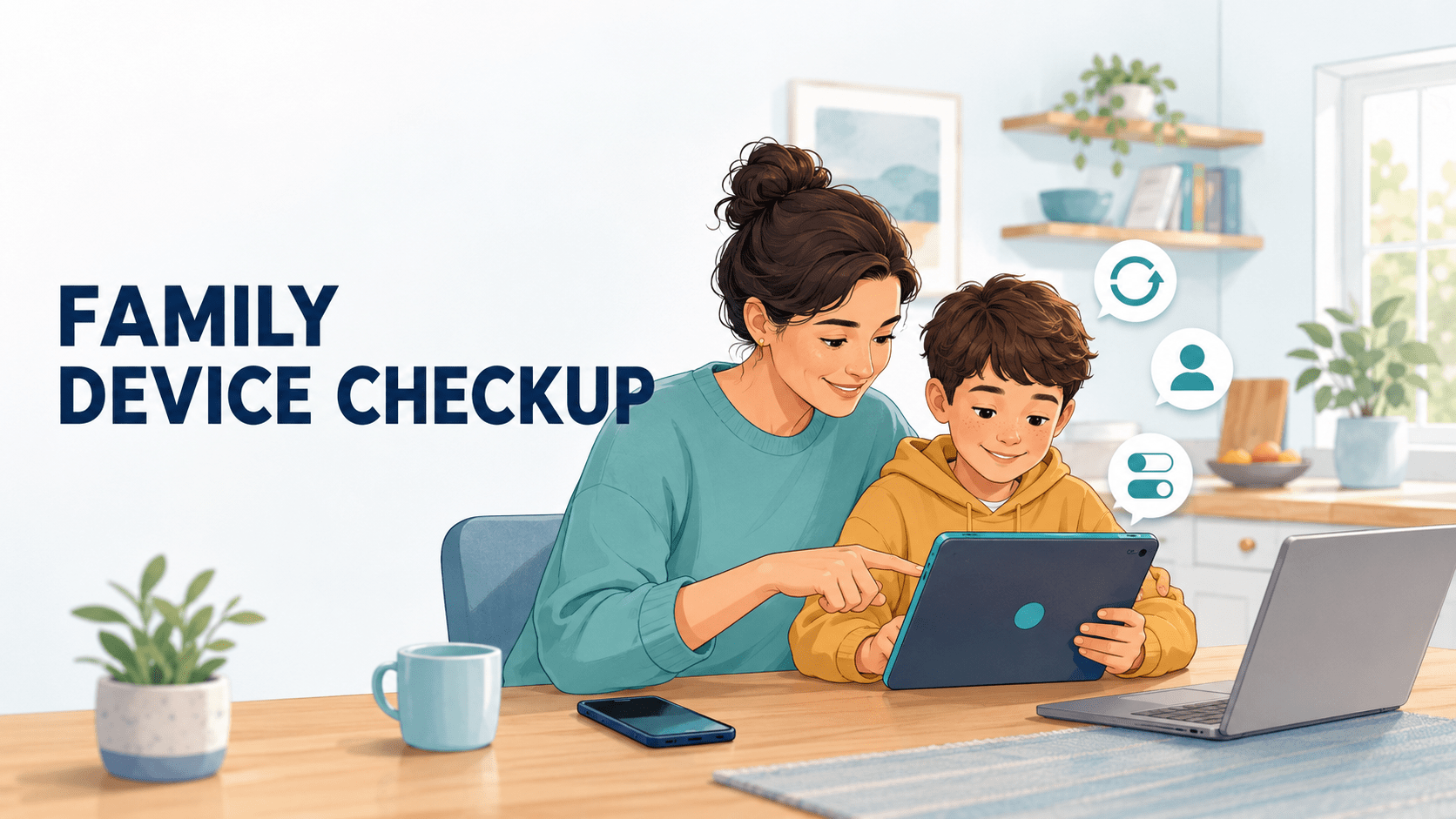
When an old tablet is passed down to a child, many parents delete their photos, install a few learning apps, and consider the job finished. A new phone often receives similar treatment: sign in, connect it to Wi-Fi, and hand it over.
Yet plenty of information may remain beneath the home screen. Shopping accounts can stay signed in, forgotten apps may still have location access, and an old recovery number could make an important account difficult to recover.
A family device checkup does not need to become a serious cybersecurity lesson. Set aside a little time, gather the phones, tablets, and computers everyone regularly uses, and review them together. Besides fixing overlooked settings, the process helps children learn what to do when something online does not feel right.
1. Check whether each device still receives updates
Start with the operating system, browser, and frequently used apps. Install available updates and remove apps that nobody uses anymore.
A device that still turns on is not necessarily suitable for every purpose. Older phones and tablets that no longer receive security updates may still work for downloaded music, offline ebooks, or simple games. However, they are poor choices for managing a primary email account, storing payment information, or accessing important family files.
Automatic updates are helpful, but parents should occasionally confirm that they are completing successfully. Limited storage, a low battery, or long periods without Wi-Fi can leave a device several versions behind.
This is also a good time to review unfamiliar apps. Ask who installed each one and whether it still serves a purpose. A game a child stopped playing last year does not need to keep its account access and permissions indefinitely.
2. Remove accounts that should no longer be there
Devices passed between family members often contain more personal information than anyone realizes.
Before giving an old tablet or phone to a child, check its browser, email, cloud photos, shopping apps, social media accounts, and digital wallet. Deleting an app icon does not always sign the user out or remove login information saved elsewhere on the device.
If a device is changing owners completely, the cleanest approach is usually to back up anything worth keeping, perform a factory reset, and configure it with the new user’s account.
Avoid letting a child use a parent’s main Apple, Google, or Microsoft account simply because it is convenient. Shared accounts can mix photographs, contacts, purchases, browser activity, and saved passwords. They also make it difficult to remove one person’s access later without disrupting everyone else.
On tablets and televisions used by the whole family, sign in only to services that genuinely need to be shared. Work email, private cloud storage, and shopping accounts do not need to remain available on communal devices.
3. Review how devices connect away from home
At home, a child’s tablet may always use the same familiar Wi-Fi. At school, a library, a hotel, or a relative’s house, the connection changes.
Open the list of saved networks and remove old hotel, café, and public hotspots. Consider turning off automatic connection for open networks as well. Otherwise, a device may join a similarly named hotspot without the child noticing.
If family members regularly use shared networks across several phones, tablets, and computers, VPN protection across multiple devices can be one part of the connection setup. A VPN encrypts traffic travelling between the device and the VPN server, which is particularly useful on networks outside the home.
Its limits should be equally clear. A VPN cannot decide whether someone in a chat is trustworthy, prevent a child from voluntarily sharing a password, or replace parental controls, software updates, and account security.
X‑VPN is one consumer privacy service offering tools for phones, tablets, computers, and browsers. It can support the network-privacy portion of a family device routine, but it is not a complete family safety or monitoring system.
4. Practise what to do with an unexpected link
“Never click links from strangers” sounds sensible, but it does not cover the situations children are most likely to encounter.
A dangerous message may appear to come from a friend whose gaming or social account has been taken over. A fake delivery notice may include the recipient’s name. Other messages use free game items, contest votes, account warnings, or QR codes to create urgency.
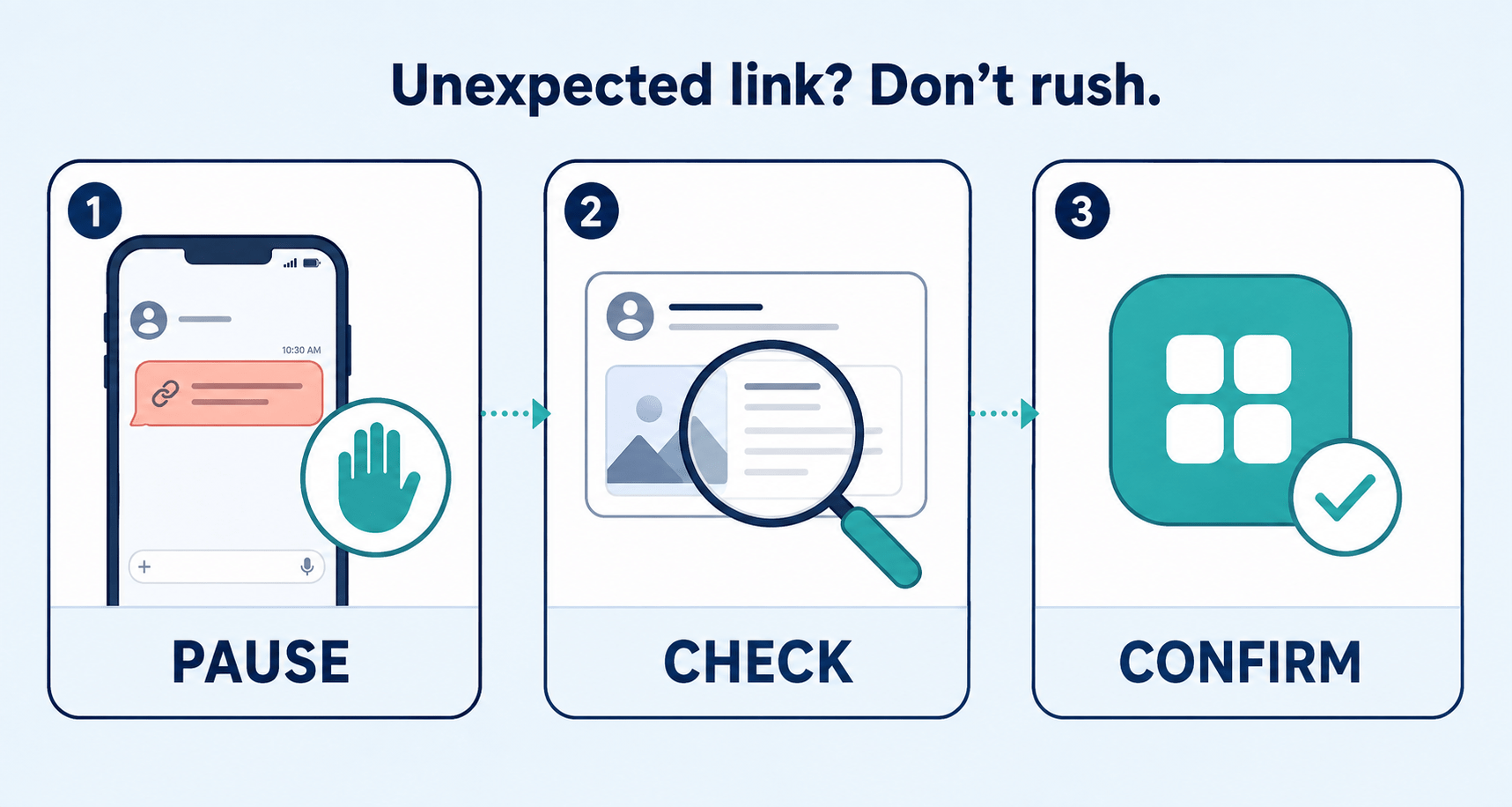
Give children a simple routine they can remember:
- Stop before opening the link.
- Consider who sent it and whether the message sounds normal.
- Do not sign in through a link sent by message.
- Open the official app or type the known website address instead.
- Ask an adult when anything feels unusual.
Parents and children can also check an unfamiliar link before opening it. A link-checking tool can provide an additional signal, but it cannot guarantee that a page is safe. A recently created malicious page may not yet have been identified, and a legitimate site could be compromised later.
The most dependable habit is still to slow down and confirm unexpected requests through another trusted channel.
5. Review what every app is allowed to access
It is easy to tap “Allow” while installing an app and never revisit the decision.
Open the device’s privacy settings and review access to location, photographs, contacts, the microphone, and the camera. Rather than switching off everything, ask a more useful question: does this permission make sense for what the app currently does?
A navigation app needs location access while it is being used. A basic flashlight app probably does not need the contact list. Video calling requires the camera and microphone but may not need precise location information.
Pay particular attention to the difference between “always allow” and “only while using the app.” Weather, transport, or family-location services may have a reasonable need for background access, but most apps do not need to know where a device is at all times.
Let children participate in these decisions. Asking, “Why do you think this game wants access to your photos?” helps them develop judgment instead of treating privacy settings as mysterious rules imposed by adults.
6. Make passwords and account recovery usable
Many families know that important accounts should use different passwords. Fewer regularly check whether account recovery would work when needed.
Review the recovery email addresses and phone numbers attached to primary email, cloud storage, school platforms, and social accounts. An old school address or disconnected phone number can turn a routine password reset into a major problem.
Use unique passwords for important accounts and enable two-factor authentication where it is available. If the family uses a password manager, make sure the adults understand how its main account can be recovered.
Backup codes should not exist only as a screenshot on the phone they are meant to recover. If that phone is lost or damaged, the codes disappear with it. Store them in a protected password manager or keep a paper copy in a secure place at home.
Children should also have separate credentials rather than copies of a parent’s passwords. Individual accounts preserve clearer boundaries and allow access to be removed from one lost device without affecting the rest of the family.
7. Establish a “help first” rule
Settings solve only part of the problem. What happens after a mistake can matter just as much.
A child may open the wrong link, download an unsuitable app, or reveal personal information in a game chat. If the expected response is immediate anger or losing the device, the child may delete the message and hide what happened.
Agree in advance that unusual situations will be handled first and discussed afterward. Begin by asking what happened, what information was entered, and whether anything was downloaded.
The next steps may include disconnecting the device, removing a file, changing a password, signing out other sessions, contacting the relevant platform, or checking payment activity. The sooner a parent understands what happened, the easier it usually is to limit the damage.
This approach does not mean abandoning rules or consequences. It simply makes asking for help the safest first response.
8. Turn the checkup into a short routine
A device checkup does not need to happen every week, and it should not become an excuse to constantly monitor a child.
A 15-minute review every few months can catch many common problems. Keep a short family checklist covering updates, unfamiliar login sessions, unused apps, sensitive permissions, recovery details, and backups.
Run an additional check before a new school term, before travelling, when a device changes owners, or after a phone is lost or an account behaves strangely.
The process should change as children grow. Younger children need direct help with settings. Teenagers benefit more from shared decisions about privacy, permissions, and responsibility. The goal is not for parents to control every tap forever, but for children to gradually develop their own judgment and know when to ask for help.
Family digital safety rarely depends on one perfect setting. It grows from ordinary habits: updating devices, separating accounts, reviewing permissions, pausing before opening unexpected links, and speaking up when a mistake occurs.
One checkup cannot remove every online risk. It can, however, help everyone understand what their devices store, how they connect, and what to do when something goes wrong.

Hey welcome to my blog . I am a modern women who love to share any tips on lifestyle, health, travel. Hope you join me in this journey!


Speak Your Mind